

Updated with AutoCAD 2017
Copying objects from one drawing to another is a common task. You can use the Windows Clipboard and the drag-and-drop methods.
When working with 2 drawings open, choose View tab> Windows panel> Tile Vertically (or Horizontally) to view both drawings at the same time.
Note 1 : You can use these techniques within a drawing as well, but the COPY command provides more options and accuracy.
Note 2: You may need to clear your clipboard if having problem pasting latest copied object. (Right click on Desktop – Display setting – Clipboard)
Use the Windows Clipboard to copy objects between drawings
Most people know that they can copy objects in a drawing to the Windows Clipboard and then paste those objects in another drawing. But there are a couple of tricks to this process that can make your work go more quickly and provide more accurate results.
Of course, you can use the common Windows keyboard shortcuts:
- Ctrl+C to copy
- Ctrl+V to paste
When you use the simple copy-and-paste procedure, you don’t have much control over the placement of your object in the second drawing. That’s because this process uses the lower-left corner of the extents of the object as the base point, which may not be useful. For example, here you see this process with a circle.
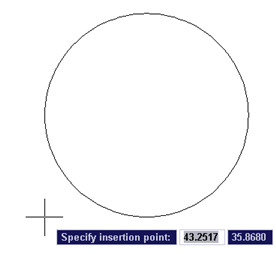

As you can see, the base point isn’t on the circle, making it difficult to place the circle accurately.
Therefore, AutoCAD provides you with 2 special tools for copying and pasting.
The first is Copy with Basepoint. Follow these steps:
- Hover the cursor over the object and right-click to display the shortcut menu. For multiple objects, select them first, and then right-click.
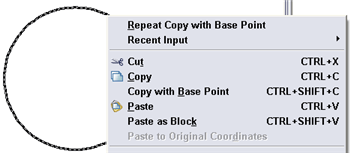

- Choose (Clipboard,) Copy with Base Point. This is the COPYBASE command. As you can see in the figure, you can also press Ctrl+Shift+C.
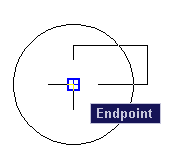
- At the Specify base point: prompt, use an object snap to specify the base point.
- Click in the other drawing.
- Paste, using Ctrl+V, or by clicking Paste on the Standard toolbar. You can also right-click and choose (Clipboard,) Paste from the shortcut menu.
- Your cursor is now at the base point you specified, so you can accurately place the object. Specify the insertion point you want.
Here, the base point was set to the center of the circle.

## Dynamic block is another great productivity tip to master. Sign up below to get your Free tutorial on creating a complete dynamic block, including a drawing to practice on. You’ll make a movable chair, resizable desk, and more.
The 2nd useful tool is Paste to Original Coordinates. If you have two drawings that are very similar, you can use this feature to place the object at the same coordinates as in the original drawing.
Just copy the object(s) to the Clipboard, and activate the 2nd drawing. Then right-click and choose (Clipboard,) Paste to Original Coordinates.
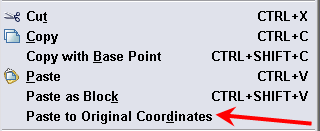

If those coordinates are not in the current display, do a Zoom Extents to see the pasted object.
Note: We receive few comments that “Paste to Original Coordinates” may not work on Mac computer. One of our followers (Thanks @Chilli ) provided the following work around.
If you do not have the Clipboard menu option of ‘pasting to original coordinates’, simply follow these steps.
1. Select elements in the proposed property drawing.
2. Right click – clipboard>Copy with base point
3. Type in 0,0
4. Switch to destination drawing
5. Right-click on open area>clipboard>paste with base point
6. Type in 0,0
And if the coordinate system is the same in both drawings, your elements should be located correctly.
Use drag-and-drop to copy objects between drawings
Drag-and-drop doesn’t give you the same control over placement, but it’s a quick way to copy objects. Note that AutoCAD automatically copies objects from drawing to drawing, so that you don’t need to press Ctrl as you drag.
To copy, select the object or objects. Then click the object and hold down the mouse button until you see the drag-and-drop cursor. The only gotcha is that you need to make sure that you don’t click on a grip, because that will just make the grip hot.
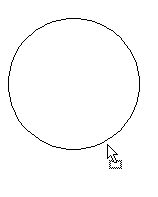

Then drag the cursor to the other drawing and release the mouse button to place the object. You’ll probably need to adjust the placement, using the MOVE command, or by using grip-editing.
Want more productivity tips like this? You can draw and edit faster and easier with this easy to follow top 25 productivity tips every AutoCAD user should know.
The post Tutorials: How to Copy Objects Between Drawings appeared first on AutoCAD Tips Blog.